


Sign In / Sign Up To Add Wishlist
Wishlist is available for members only. Please sign in or sign up to add your wishlist.
How to print A5 more cost effectively using an A4 printer

Got a flyer, menu insert or client handout to print and you want it to look polished without sending it out to a print shop? Printing A5 using standard A4 paper is one of the easiest and most cost-effective ways to create professional-looking A5 single sheets in-house, using the paper you already keep in the tray.
And you don’t need a complicated setup to get there. Most decent printers can handle the printing part. But where it can get tricky is the finishing - especially if you’re producing A5 materials in volume. Trimming everything neatly to A5, keeping edges even and getting a whole stack consistent is usually what slows people down.
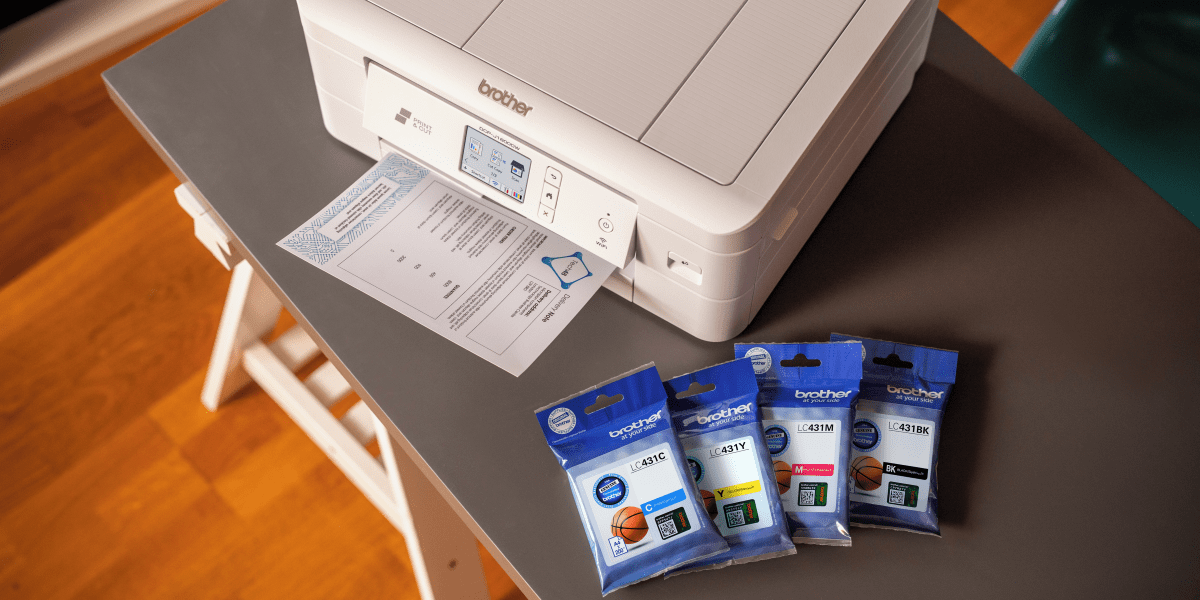
But with the right tools - such as the Brother DCP-J1800DW Print & Cut Inkjet Printer - you can simplify the process without ever needing scissors or a guillotine. The printer’s unique built-in auto-cutting function means you can skip manual trimming and focus on creating clean, consistent A5 materials with ease. This isn’t a standard feature on most home and small office printers: while many can print A5 onto A4 paper, they can’t automatically cut it down to size. That’s what makes the Brother DCP-J1800DW genuinely different when you need neat A5 stacks, fast.
In this guide, we’ll take you through everything step by step: sizing basics, the easiest ways to print A5 from Word and PDFs and how to finish your pages neatly - including a faster option for automatically cutting A5 single sheets with the Brother DCP-J1800DW.
Understanding Page Sizes: Is A5 Half of A4?
Here’s a clear breakdown of the paper dimensions to help you compare the two:
-
A5 page size: 148mm × 210mm
-
A4 page size: 297mm × 210mm
So yes - A5 is exactly half the size of A4. That’s what makes standard A4 paper such a practical and cost-effective choice for A5 single sheets. You can print two A5 layouts on one A4 sheet, then cut it in half to create two clean A5 pages.

This approach is especially handy when you need A5 materials in volume like flyers, menu inserts, price lists, product info sheets, event handouts or mini signage because you can keep using the A4 paper you already stock, while still producing A5 prints that look neat, consistent and ready to use.
How to print two A5 pages on one A4 sheet
If you want A5 single sheets for flyers, inserts and handouts, this is usually the most cost-effective method because you get two A5 pages per A4 sheet.
How to print A5 in Adobe Acrobat Reader (fastest for PDFs)
1. Open the PDF
2. Go to File > Print
3. Under Page Sizing & Handling, choose Multiple
4. Set:
- Pages per sheet:
- Page order: Horizontal
- Turn on Print on both sides of paper if you want double-sided A5 sheets
You’ll end up with two A5 pages on one A4 sheet and ready to cut cleanly down the middle.
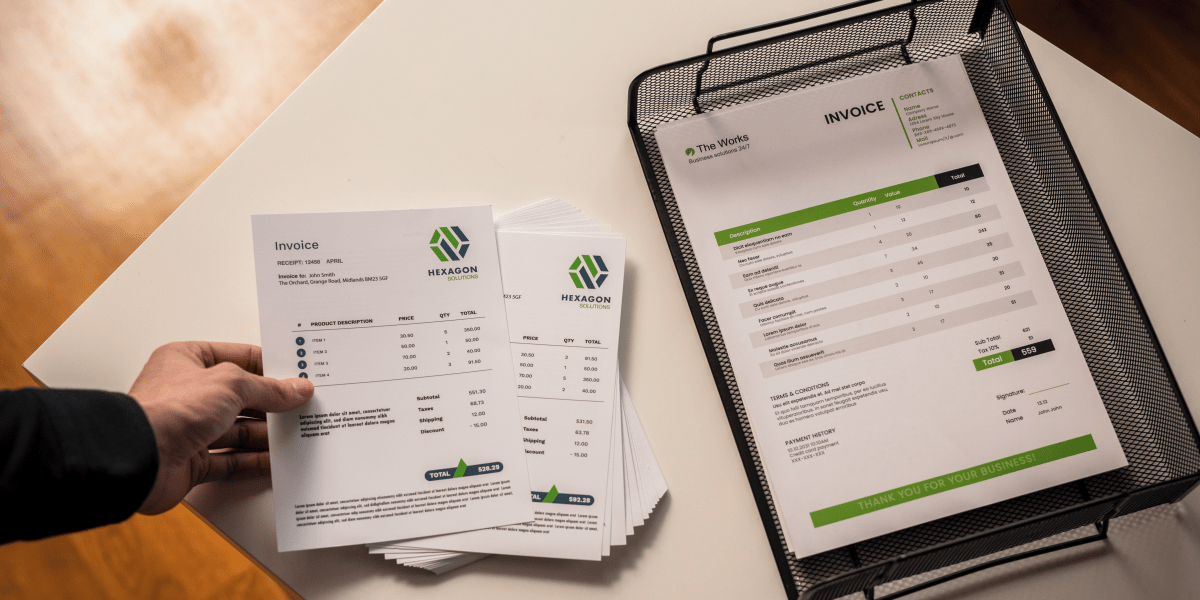
How to print A5 in Word (simple workaround if you don’t have a PDF software yet)
If you’re working in Word and want two A5 layouts on one A4 sheet:
1. Go to the Layout tab, click Size, and ensure it is set to A5
2. Click File and select Print (or press Ctrl+P)
3. Adjust Printer Settings:
• Paper Size: Ensure the printer is set to A4
• Pages Per Sheet: Change from "1 Page Per Sheet" to "2 Pages Per Sheet"
• Scale to Paper Size: Select A4 from the dropdown menu
4. Click Print
This setup lets you keep your document formatted neatly in A5 while you’re editing but prints two A5 pages side-by-side on an A4 sheet - ideal if you’re planning to cut the page down the middle for clean A5 single sheets.
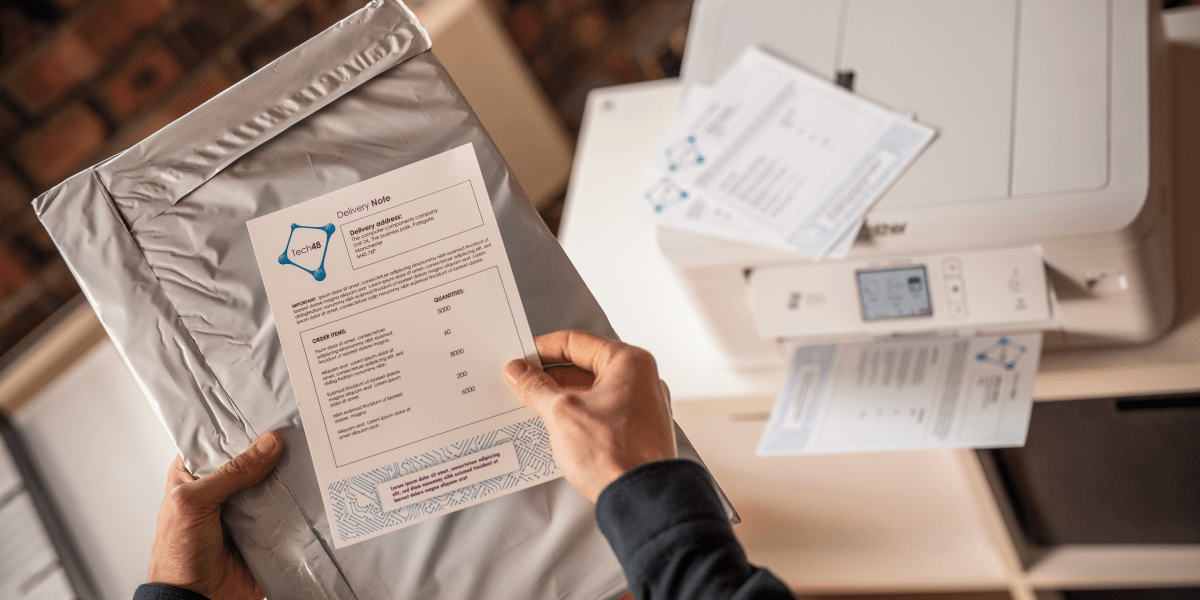
If you’re printing in volume, it’s worth doing a quick test print first to confirm alignment (especially for double-sided pages), then you can print your full run with confidence and get a consistent stack ready to hand out.
The faster option: How to print and automatically cut A4 down to A5
If you’re producing A5 single sheets regularly for a small business, a school/community group or a market stall/side hustle, an automatic cutting workflow can save a surprising amount of time.
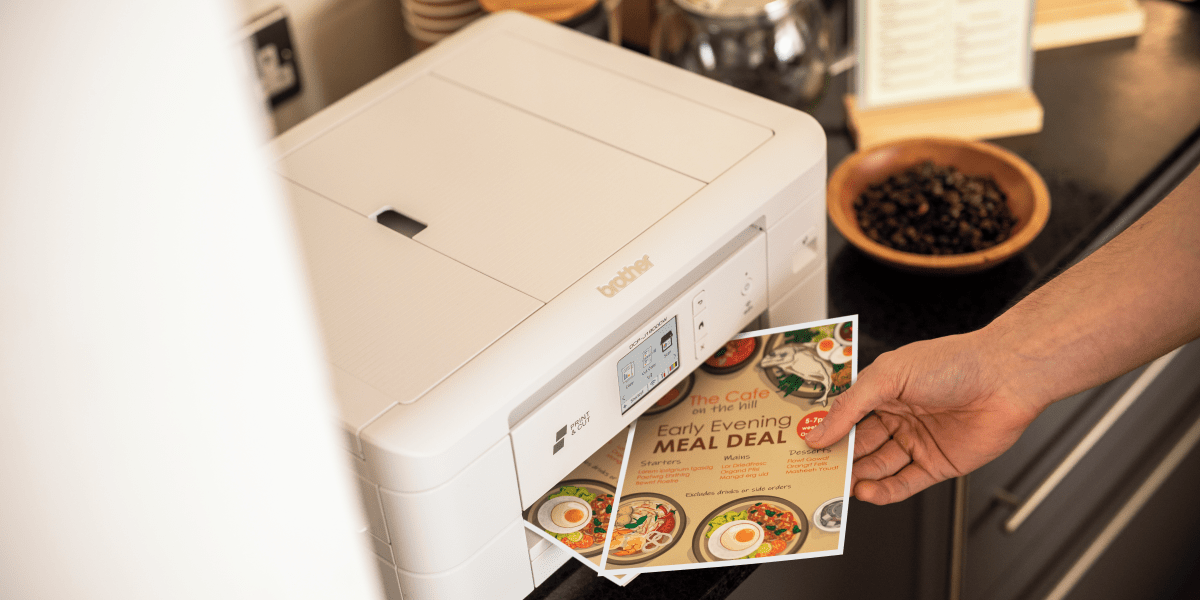
A Print & Cut device like the Brother DCP-J1800DW removes the manual trimming step by automatically cutting printed A4 sheets down to A5 (including double-sided jobs) so your output is consistently sized and ready to use. Unlike standard A4 printers, which still rely on you to trim every sheet by hand, the DCP-J1800DW does the cutting for you - so each A5 page comes out the same size, every time.
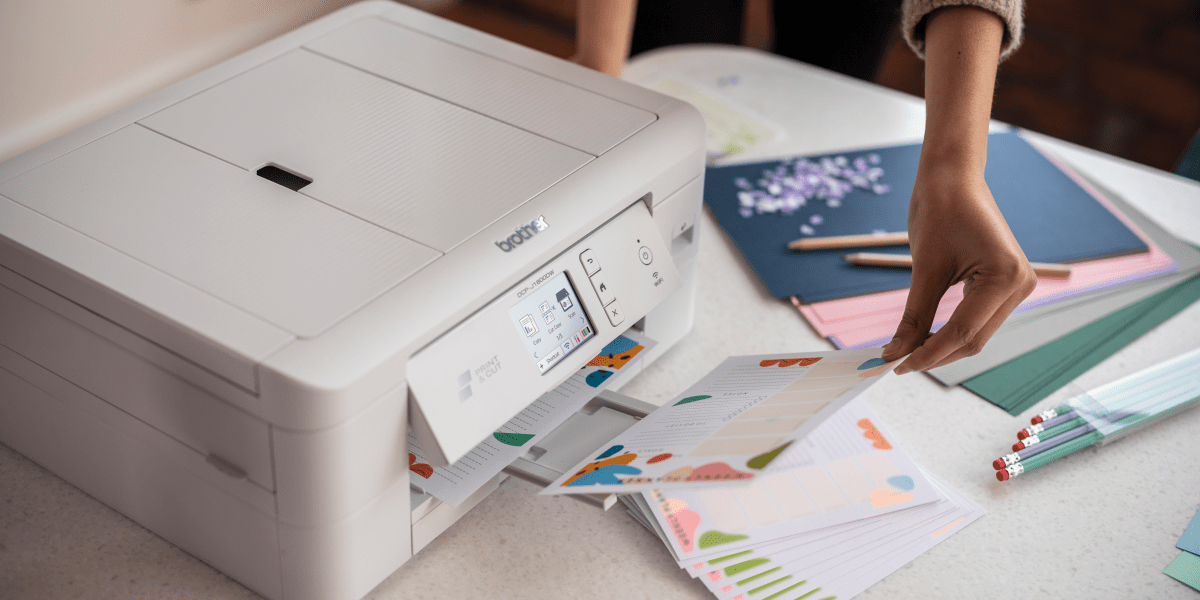
How it works:
1. Load standard A4 paper (so you can keep buying the paper you already stock) without purchasing single A5 sheets
2. Select the relevant Cut Print option in your print settings, for example:
• Cut Print (A4): Fit to Cut Page (automatically resizes and prints your A4 document to A5, then cuts it in half), or
• Cut Print (A5) (prints an A5 file onto A4, then cuts the page in half for you)
3. Hit Print - the device handles the cut consistently on every sheet
Why this can be more cost effective:
- You get two A5 pages from every A4 sheet, so there’s no need to buy dedicated A5 paper at a higher cost per page
- You reduce waste from uneven cuts and reprints
- You save time on repetitive trimming (often the biggest “hidden cost”)
- You can update and reprint short runs quickly instead of outsourcing
- And because the cut is built into the print workflow, you don’t need extra equipment like a guillotine or trimmer to get a clean, professional finish
What you can create with A5 single sheets
A5 is popular because it feels a bit more “designed” than a standard A4 sheet - it’s easy to hand out, easy to display and doesn’t look like you’ve just printed something straight from the office tray. At the same time, it’s still quick to update and affordable to produce in-house, especially when you’re using standard A4 paper and printing two-up.

Common A5 single-sheet use cases include:
- Flyers and promo handouts (sales, specials, new services)
Perfect for quick-turnaround promotions - end-of-season sales, limited-time offers, new service launches or a simple “what’s new” handout for walk-ins and events
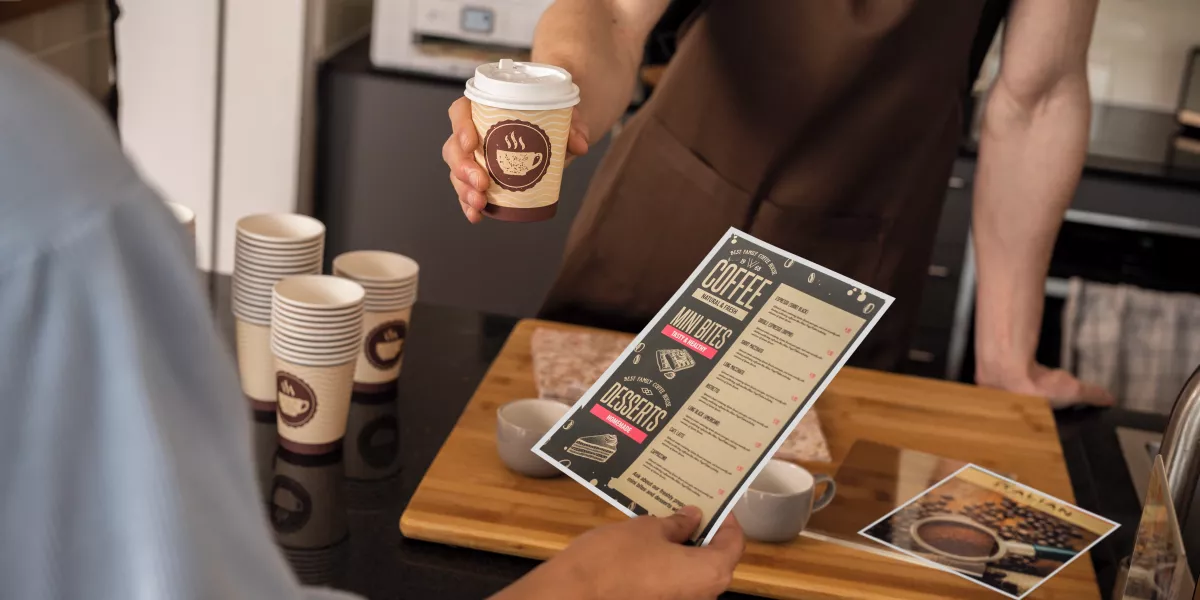
- Menu inserts (seasonal promos, specials, updated pricing)
Ideal when menus change often. Print fresh inserts for daily specials, new drinks, weekend menus or price updates without reprinting the full menu
- Mini signage (counter signs, table notices, small display cards)
Great for point-of-sale messages like “Scan to order”, “Please wait to be seated”, “New arrivals”, “Today’s special” or small directional signs at events
- Price lists (salons, clinics, trades, service menus)
A tidy format for service menus that need updating - treatment lists, packages, add-ons, consultation fees or limited-time bundles customers can browse while they wait
- Product info sheets and QR cards (markets, pop-ups, in-store displays)
Useful for stallholders and retailers: product cards, ingredient/allergen info, care instructions, sizing guides, “meet the maker” blurbs or QR codes linking to online ordering, socials or reviews
- Event handouts (run sheets, reminders, schedules, maps)
Handy for conferences, workshops and community events - agendas, speaker line-ups, quick maps, safety notes or “what you need to know” sheets people can keep in their pocket
- School and community communications (canteen menus, fundraiser flyers, club sign-on sheets)
Practical for weekly canteen menus, term calendars, excursion reminders, volunteer rosters, sign-up sheets and quick flyers for school/community events
Print A5 on an A4 printer without the hassle
Printing A5 using an A4 printer is a practical way to stay flexible and keep costs down, especially if your materials change often. And if A5 is something you produce regularly, switching from manual trimming to an automatic cut workflow can make the whole process faster and far more consistent.

That’s where the Brother DCP-J1800DW Print & Cut stands out, because it delivers something most A4 printers simply can’t: clean A5 single sheets that come out already cut and ready to use.
Ready to streamline your A5 printing? Learn more about the DCP-J1800DW Print & Cut or contact our team if you’d like help choosing the right setup for your workspace - we’re always at your side.
Comments

WFH Setup for Winter: Stay Warm, Efficient & Organised
Build a winter remote work setup that balances comfort & productivity. Explore tips like a warm desk lamp, thermal mug and compact printer for your winter work routine.

Work From Home Tax Deductions: What Can You Claim?
Understand working from home expenses, ATO deduction methods, home office equipment claims and how to keep the right tax records.

Finding the best printer for home use
Discover the best home office printers in Australia. Compare top Brother home printer models for families, students, remote work and budget-friendly printing.

Resource Library
Explore our range of eBooks, Whitepapers & Case studies
Be the first to receive ongoing exclusive offers and the latest news on our products and services directly in your inbox!